
Tonrad User Manual
Tonewheel organ for iPhone and iPad
Updated November 16, 2026 · Versions 0.1.0 / 0.2.0
Before you start
Tonrad is a standalone tonewheel organ for iPhone and iPad running iOS/iPadOS 18 or later. Turn your device sideways: the app works in landscape only. Its three screens are HOME, DRAWBARS and SET. The app interface is available in Japanese and English; this manual is available in 11 languages.
| Feature | 0.1.0 | 0.2.0 |
|---|---|---|
| Onscreen keyboards and sound controls | Yes | Yes |
| USB MIDI, keyboard zones and MIDI LEARN | No | Yes |
| Audio while another app is in front | No | Yes |
| Stop rotation while keeping the speaker sound | No | HOME → ROTOR |
| Bypass the rotary speaker | HOME → SPEAKER | SET → AUDIO → SPEAKER OFF |
There are no presets, recording, accounts, ads or in-app purchases. Tonrad does not run as an Audio Unit plug-in. PRESET and TUNE are not screens in the App Store edition.
Play your first notes
- Open Tonrad with your device in landscape. Start with a comfortable device volume.
- On HOME, play the top keyboard, labelled UPPER. The initial drawbar settings already produce a sound; no external keyboard is needed.
- Move the EXP slider on the right upward if the sound is too quiet. Check SET → AUDIO → OUTPUT and the displayed output device if you still hear nothing.
- Tap DRAWBARS. To try a simple tone, set UPPER's 8′ drawbar to 8, the other eight UPPER drawbars to 0, and PERC to OFF. Return to HOME and play.
- Add the UPPER 16′ and 5⅓′ drawbars, then try ROTARY → SLOW / FAST.
LOWER and PEDAL have their own drawbars. Raising a UPPER drawbar does not give the other keyboards a sound.
HOME: keyboards and expression
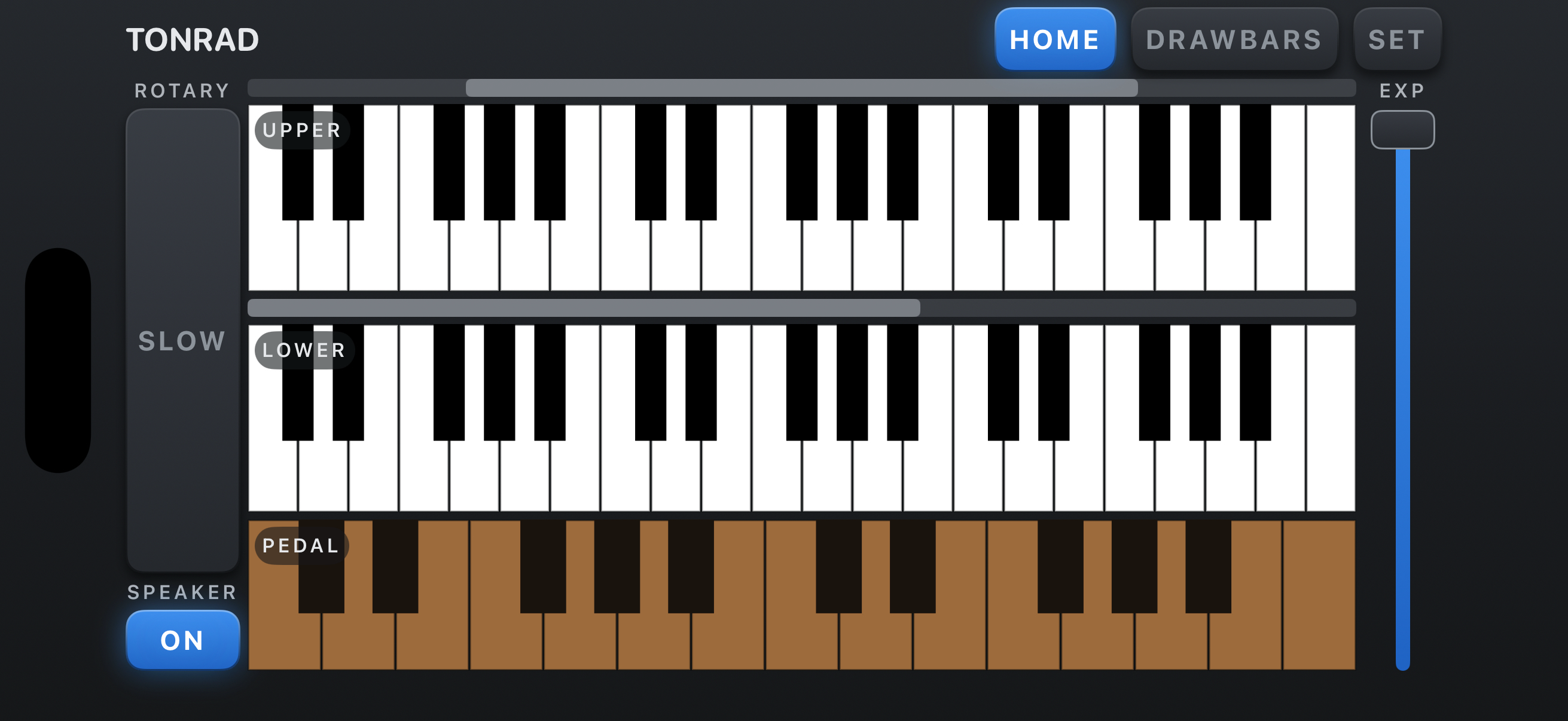
The three rows are UPPER, LOWER and PEDAL. Press a key to play; release it to stop. Sliding a finger across the keys changes the note. Multiple fingers can play at once.
On a smaller screen, a narrow bar above each manual keyboard shows its visible range. Tap or drag that bar horizontally to reach lower or higher notes. It moves the visible keys, not their tuning. A wide screen can show the full manual, so the range bars disappear. The pedalboard remains a separate row.
EXP is the expression control for the whole organ. Drag up for more sound and down for less; a tap alone does not jump to that level. Double-tap EXP to restore maximum. It starts at maximum each time you launch the app and is not saved. Use it for musical swells; use SET → OUTPUT for the overall output level.
DRAWBARS: build a sound
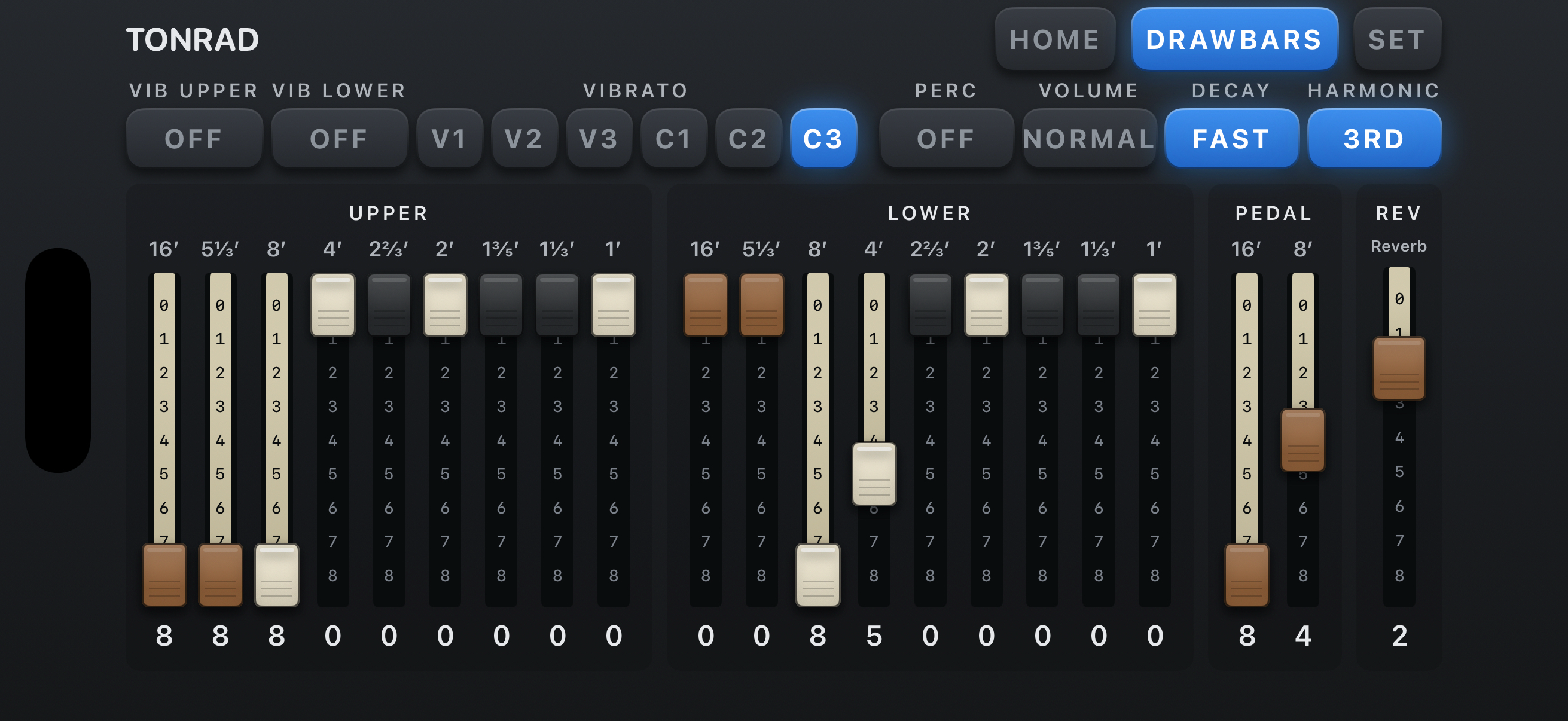
Drag a drawbar downward to increase its level, or upward to reduce it. Each has positions 0–8: 0 is silent and 8 is maximum. UPPER and LOWER each have nine drawbars; PEDAL has two.
| Bank | Drawbars, left to right |
|---|---|
| UPPER / LOWER | 16′ · 5⅓′ · 8′ · 4′ · 2⅔′ · 2′ · 1⅗′ · 1⅓′ · 1′ |
| PEDAL | 16′ · 8′ |
The 8′ drawbar gives the played note's pitch; 16′ adds an octave below and 4′ an octave above. The shorter and fractional footages add higher harmonics. Combine their levels to shape the tone.
Try 8 8 8 0 0 0 0 0 0 on UPPER as a starting registration. These numbers describe positions from left to right; they are an example to set by hand, not a preset you can select. Reduce OUTPUT if a denser registration becomes too loud.
Percussion: an accent on UPPER
Percussion adds a decaying accent to the upper manual. Its controls are above the drawbars:
- PERC — ON / OFF: enable or disable the accent.
- VOLUME — SOFT / NORMAL: choose its level.
- DECAY — FAST / SLOW: choose how quickly the accent fades.
- HARMONIC — 2ND / 3RD: choose the second or third harmonic.
Percussion retriggers after you release all UPPER keys and play again. Legato playing with a key held does not retrigger it on every note. When PERC is ON, the UPPER 1′ drawbar is dimmed and does not sound; its position is retained for when you turn percussion off.
Vibrato and chorus
VIB UPPER and VIB LOWER enable the effect for UPPER and for LOWER/PEDAL respectively. Choose one shared mode from V1, V2, V3, C1, C2, C3.
V modes add vibrato; C modes mix the original sound with the vibrato signal for chorus. The three numbers select different depths. Selecting a mode does not turn an OFF manual switch on. VIB LOWER also affects PEDAL. Percussion is not passed through this vibrato effect.
Rotary speaker and spring reverb
On HOME, tap the large ROTARY control to alternate between SLOW and FAST. The change accelerates or slows down rather than jumping instantly.
- 0.1.0: the separate SPEAKER ON / OFF button bypasses the whole rotary speaker when OFF.
- 0.2.0: ROTOR ON / OFF stops or starts rotation while keeping the speaker sound. To bypass the entire speaker, enable SET → AUDIO → SPEAKER OFF. Turn that switch off to hear the speaker again.
In DRAWBARS, the REV drawbar to the right of PEDAL controls spring reverb. Its range is 0–8; 0 turns it off. Start with 2, then adjust to taste. Reverb is separate from the rotary speaker.
SET: output, PANIC and audio information
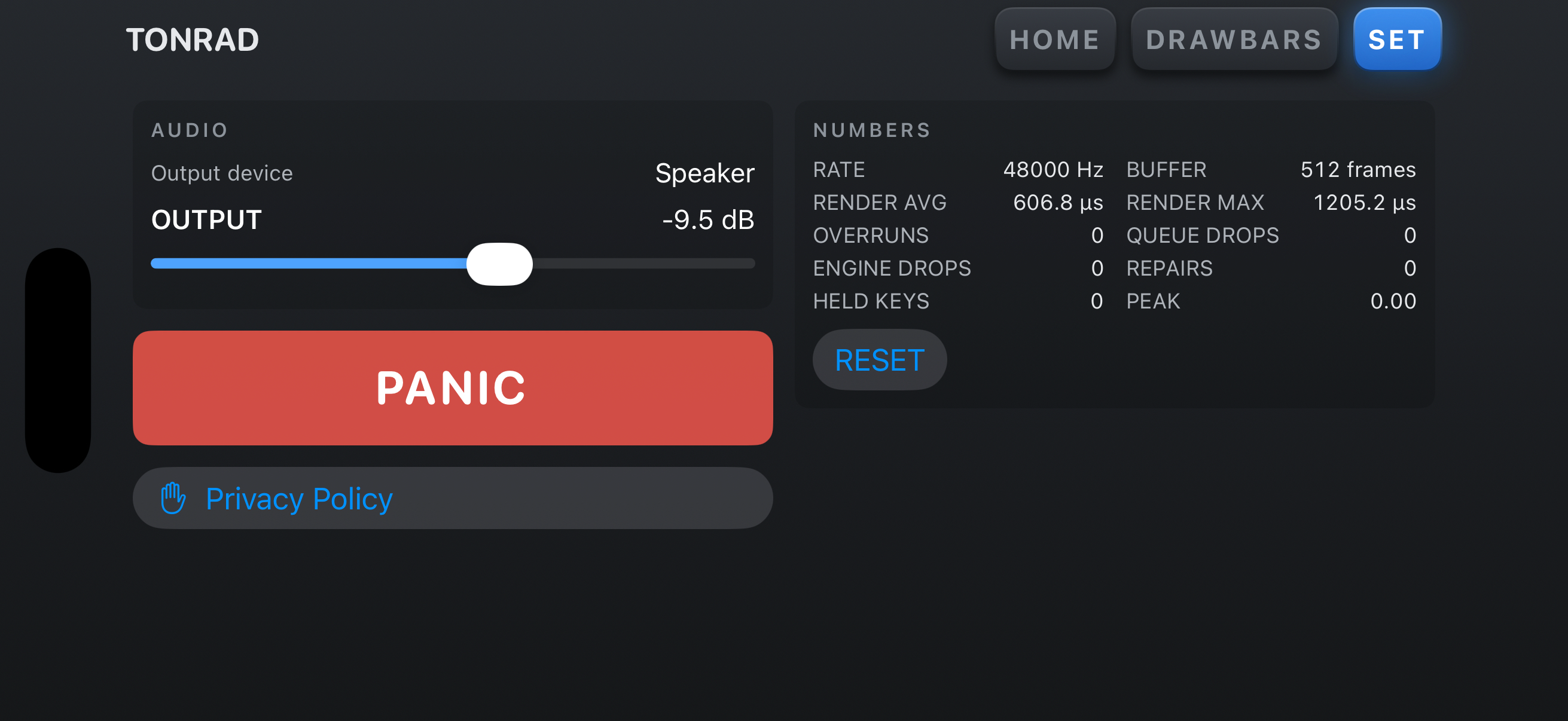
AUDIO shows the current output device and the OUTPUT slider. Adjust this for the overall level. Double-tap the OUTPUT label/value area to restore its default. The slider itself does not respond to that reset gesture.
PANIC stops all sounding notes. Use it if a note hangs after disconnecting a keyboard or changing audio connections.
NUMBERS shows audio information such as sample rate, buffer size and processing counters. These are readouts, not audio configuration controls. RESET resets the host's diagnostic measurements, not your sound or saved settings. ENGINE DROPS and REPAIRS remain until the audio engine restarts.
The privacy-policy link opens the website in your browser. In 0.2.0, SET also contains the MIDI settings described below. You may need to scroll to see all of them.
USB MIDI keyboards — 0.2.0
- Connect a USB MIDI keyboard to the iPhone or iPad with a suitable data cable or adapter. A device that needs more power may require a powered hub.
- Open SET → MIDI and check the connected-device list.
- By default, send on CH 1 for UPPER, CH 2 for LOWER or CH 3 for PEDAL.
- Set the receiving channel for each part in SET if needed. Channels stay distinct: choosing a channel used by another part exchanges their assignments.
- Use OCT for −3 to +3 octaves of shift within the zones described below. It applies to notes routed from the UPPER input channel, not to the onscreen keyboards or direct LOWER/PEDAL-channel notes.
Tonrad receives the MIDI inputs available to iOS. There is no Bluetooth MIDI pairing screen inside the app. In 0.2.0, audio and MIDI can continue while you view another app. Version 0.1.0 accepts no MIDI input and stops its audio when moved to the background.
One keyboard, three zones — 0.2.0
For one keyboard, send on the channel assigned to UPPER. The strip along the top divides that input into BASS / LOWER / UPPER. With both boundaries at the far left, the full range goes to UPPER.
- Drag from the strip's left edge to the right to create a LOWER/UPPER boundary.
- Drag the boundary still at the left edge rightward to create a BASS zone. The order is BASS, LOWER, UPPER.
- Drag a zone vertically to adjust its octave, or use its OCT control in SET. These octave shifts apply to notes from the UPPER input channel.
Fold notes into range in SET brings MIDI notes outside a part's playable range back by octaves, keeping their note name. It also works for direct LOWER/PEDAL-channel input. Changes apply to subsequent notes.
Add a pedal tap to left-hand bass sends the BASS zone to LOWER and adds a short pedal tone with the same note name. It also applies to LOWER notes below the BASS boundary. Move that boundary away from the far left to use it. Shape the added tone with the PEDAL drawbars and adjust Tap length in SET. Changes apply to subsequent notes. The length can be set from 20 to 200 ms in 0.2.0 (60 ms at first) and from 10 to 200 ms in 0.3.0 (20 ms on a new installation; a device that already has saved settings keeps its length). The tap uses the velocity you play, so with a short length a soft keystroke may add little or no pedal tone.
Pedals, knobs and MIDI LEARN — 0.2.0
MIDI LEARN links the knobs, sliders, buttons and pedals of your MIDI device to Tonrad's controls. Tonrad learns the control change (CC) that the device sends, so you do not need to know any CC numbers.
Controls that work without learning
The default controls are CC11 for expression, CC1 for rotary speed (0–63 SLOW, 64–127 FAST) and CC64 to toggle SLOW/FAST. These default controls respond on the channels assigned to the three parts. CC64 is a speed switch here, not a piano sustain pedal: pressing toggles the speed and releasing does not change it back.
Before you start
- Connect the MIDI device and check that its name appears under Connected devices in SET → MIDI.
- The knob, slider, button or pedal must send control change (CC) messages. Most controllers do this as shipped. Pitch-bend wheels, aftertouch and program-change buttons cannot be learned.
Assign a control from the list
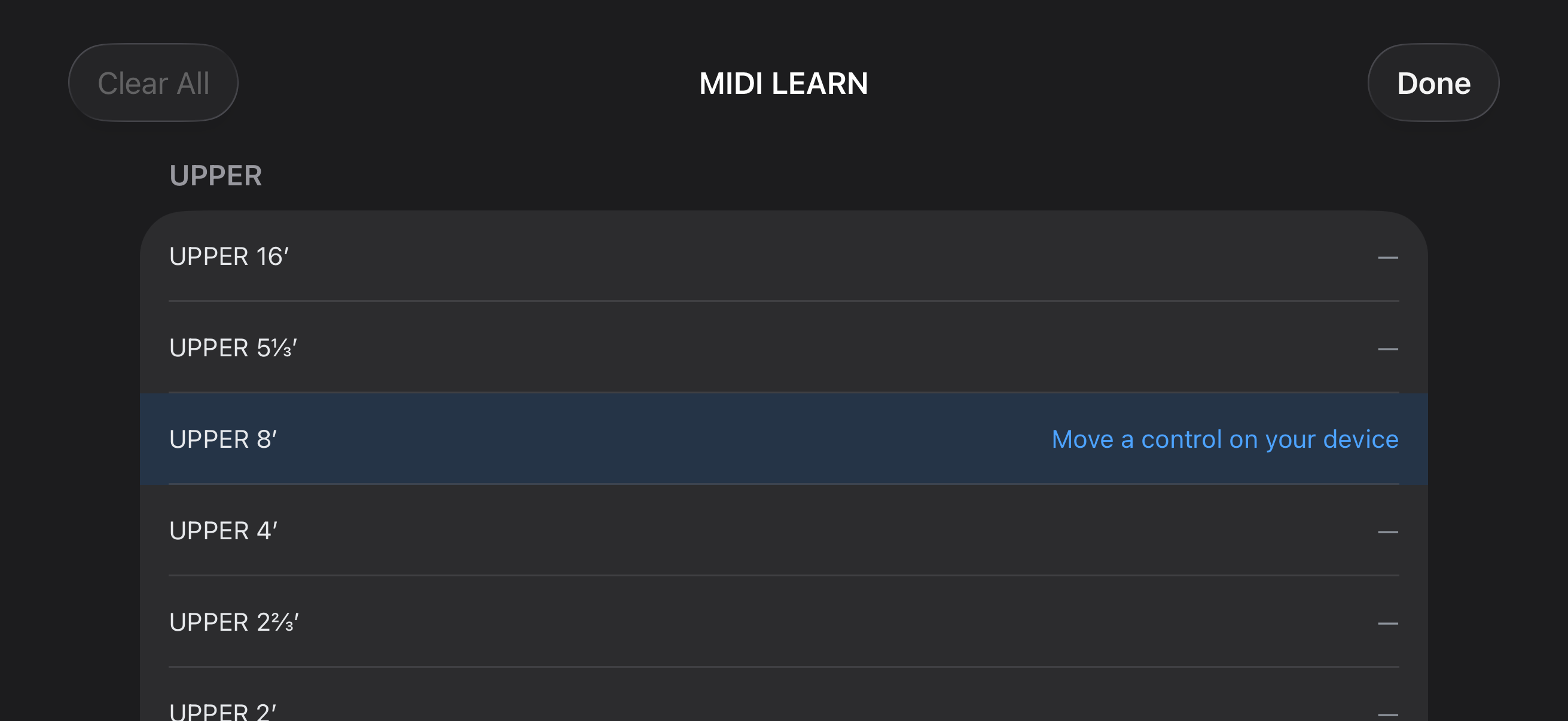
- Open SET and tap MIDI LEARN in the MIDI box. A list of 32 controls opens: the drawbars under UPPER, LOWER and PEDAL, and everything else under OTHER.
- Tap the row you want to control, for example UPPER 8′. The row is highlighted and shows Move a control on your device.
- Move the knob, slider, button or pedal on your MIDI device. Tonrad learns the first control change it receives.
- The row now shows where the message came from, for example CH 1 · CC 74, and stops waiting. From now on, that knob or button moves the row's control.
- Repeat steps 2 to 4 for other rows, then tap Done.
To stop waiting without assigning anything, tap the same row again.
Assign by holding a control
- On DRAWBARS, hold a drawbar or REV; on HOME, hold EXP, ROTARY or ROTOR. Keep your finger still for about 0.6 seconds. Holding does not change the control's value.
- The list opens with that row already waiting. Do not tap the row: a second tap cancels the waiting.
- Move the control on your MIDI device, check that the row shows CH … · CC …, then tap Done.
Percussion, vibrato and SPEAKER (ON / OFF) have no long press. Assign them from the list.
Examples
- Nine sliders for the UPPER drawbars
- In the list, tap UPPER 16′ and move the first slider. Tap UPPER 5⅓′ and move the second, and continue to UPPER 1′. Each row keeps its own slider.
- An expression pedal
- A pedal that sends CC11 on one of the three part channels moves EXP without learning. If your pedal sends another number, such as CC7, or uses another channel, learn it on the EXP row.
- A footswitch or button for SLOW / FAST
- A sustain-type footswitch (CC64) already switches the speed. For any other button, learn it on ROTARY (SLOW / FAST · TOGGLE): each press switches the speed, and releasing does nothing.
- A button for percussion
- Learn it on PERC (ON / OFF). Use a button that stays on after you press it (controllers often call this toggle or latch mode); see the table below.
What the values do
| Row in the list | Effect of the CC value |
|---|---|
| UPPER 16′ – 1′, LOWER 16′ – 1′, PEDAL 16′ / 8′, REV | 0–127 sets position 0–8 (0 is position 0, 127 is position 8). |
| EXP | 0–127 moves EXP from minimum to maximum without steps. |
| VIB V1 – C3 | Six equal ranges: 0–21 V1, 22–42 V2, 43–63 V3, 64–85 C1, 86–106 C2, 107–127 C3. |
| PERC (ON / OFF), VIB UPPER (ON / OFF), VIB LOWER (ON / OFF), SPEAKER (ON / OFF) | 64–127 is ON, 0–63 is OFF. |
| VOLUME (SOFT / NORMAL), DECAY (FAST / SLOW), HARMONIC (3RD / 2ND) | 64–127 selects the first name (SOFT, FAST, 3RD); 0–63 selects the second (NORMAL, SLOW, 2ND). |
| ROTARY (SLOW / FAST · TOGGLE), ROTOR (ON / OFF · TOGGLE) | Switches each time the value rises from 63 or below to 64 or above. Releasing does not switch back. |
A button that sends 127 only while it is held keeps an ON/OFF switch on only while you hold it. If your controller has a toggle (latch) mode for that button, turn it on. ROTARY and ROTOR work with either kind of button.
The control on the screen follows your device, and you can still move it on the screen. Values are absolute: the first movement of a knob or slider makes the control jump to that knob's position.
Change or remove an assignment
Drawbars, EXP, REV, percussion, vibrato and rotary controls can be assigned. Use the row's × button to remove an assignment; Clear All removes every learned assignment. The assignments are saved locally. Learning the same channel/CC for a different target moves the assignment to that target.
- To use a different knob for a row, tap the row and move the new knob. The new one replaces the old.
- An assignment is stored as a MIDI channel plus a CC number. If you change the channel your controller sends on, or switch to a controller that uses other numbers, learn the rows again.
What cannot be learned
CC1, CC64 and CC120–127 cannot be learned. CC11 can be assigned only to EXP. SLOW/FAST and ROTOR toggle when a value crosses from 63 or below to 64 or above; releasing does not toggle them back. Other learned switches use 64–127 for ON and 0–63 for OFF.
- If you move a control that sends CC1, CC64 or CC120–127 (or CC11 for a row other than EXP), a red line at the top of the list says that the CC has a fixed role and cannot be learned. The row keeps waiting: move another control, or tap the row to stop.
- Notes, pitch bend, aftertouch, program change, NRPN and 14-bit control changes are not learned.
- OUTPUT, PANIC, the range strips above the keyboards, the zone strip, and the MIDI channel and octave settings have no row in the list.
- A drawbar's direction cannot be reversed in Tonrad: 127 is always position 8.
If learning does not work
- The row keeps showing “Move a control on your device”
- No control change is arriving. Check that the device is listed under Connected devices, then try another knob or button: the one you moved may send pitch bend, aftertouch or program change instead of a CC.
- The wrong control was learned
- Tonrad learns the first control change it receives. Remove the assignment with ×, keep the other knobs and pedals still, and try again.
- A switch turns off when I release the button
- The button sends 0 when released. Set it to toggle (latch) mode on the controller, or use a different button.
- A drawbar moves the opposite way
- 127 always means position 8. If your controller can invert a slider's output, set that on the controller.
- Learned controls stopped working
- Check the device under Connected devices and the channel it sends on. An assignment made on one channel does not respond on another; learn the row again.
What is saved
Tonrad restores drawbar positions, percussion, vibrato, rotary-speaker settings, reverb, visible keyboard ranges and OUTPUT on your next launch. In 0.2.0, MIDI channels, zones, octave shifts, range-foldback/pedal-tap settings and MIDI LEARN assignments are saved too.
EXP is not saved and starts at maximum. There are no named presets or setting-export/cloud-sync features. Settings stay on your device; deleting the app deletes them.
How the tonewheel engine works
A tonewheel organ generates electrical tones with rotating toothed metal wheels and electromagnetic pickups. Pressing a key connects selected tones to the output; it does not start the wheels. Drawbars set the balance of these components. The nine contacts under each manual key do not necessarily close together, and their brief opening and closing contributes to key click.
Background reading: Moro, McPherson & Sandler (2017) · Werner & Abel (2016).
- Rotating wheels
- Electromagnetic pickups
- Key contacts
- Drawbars and mixing
- Amplification and speaker
Tonrad models this signal path in software. One bank of 91 tonewheels is shared by the upper manual, lower manual and pedals. It is not a separate bank of 91 oscillators for every played note. Each manual has 9 contacts per key; the pedals use 8 contacts and 4 busbars mixed into 2 drawbars. Near the limits of the generator, manual wiring reuses tones in another octave (foldback).
Implementation choices in Tonrad
- Continuous rotation and shared shafts
- The engine advances 48 shaft phases while audio processing runs. Wheels mounted on the same modeled shaft share its motion and slow pitch fluctuations. Note-on does not reset their phase, so successive attacks can meet different points of the waveform.
- Frequency from gearing
- Frequency is calculated from motor speed, gear ratio and tooth count, rather than forcing every wheel to an exact equal-tempered frequency. For example, 20 revolutions/s × 88/64 × 16 teeth gives 440 Hz.
- A waveform for a whole revolution
- Tonrad builds each wheel’s periodic waveform from harmonics, level differences, amplitude wobble and small tooth-phase irregularities. The lowest 12 wheels use a richer odd-harmonic shape. These are synthesized waveforms, not recordings of complete played notes.
- Controlled irregularity and signal processing
- Fixed seeds preserve each wheel’s and key’s character. The divisions have separate random streams for contact timing, so playing one division does not shift another division’s bounce sequence. Wheel tables are band-limited; contact switching receives separate corrections. Leakage and load-dependent level changes also affect the combined organ tone.
This is a designed digital model, not a measurement of every component of one particular vintage organ. In particular, the contact-time defaults below are Tonrad’s tuning choices, not universal specifications for mechanical organs.
Attack timing: contacts, velocity and key click
Tonrad gives each contact its own switching time. A low drawbar can therefore begin later than a high one, changing the spectrum during the attack. This is different from applying one shared volume envelope to the completed note. Velocity controls the contact-time spread; it does not directly scale the sustained organ level like a piano velocity curve.
For a note-on velocity V from 1 to 127, the first-to-last contact spread S is calculated in milliseconds as follows. Velocity 0 means note-off.
v = (V − 1) / 126
S = slow × (fast / slow) ^ (v ^ curve)
slow = spread_slow_ms, fast = spread_fast_ms, curve = spread_curve. At V = 1, S equals slow; at V = 127, it equals fast. With slow greater than fast, a larger curve keeps intermediate velocities closer to the slower attack. The default values are 91.9 ms, 4.55 ms and 1.52. S measures the first-to-last initial closure, not the time until all contacts settle: the last contact can still bounce after S.
| Velocity V | Spread S |
|---|---|
| 1 | 91.90 ms |
| 32 | 64.33 ms |
| 64 | 32.22 ms |
| 100 | 11.44 ms |
| 127 | 4.55 ms |
These are calculated contact intervals, not measurements of finger-to-speaker latency. The on-screen keyboard sends velocity 100, giving a spread of about 11.44 ms. Touch pressure does not change it. External note velocity reaches the engine in development version 0.2.0; public 0.1.0 has no external MIDI.
Which contact closes first?
- Upper manual
- The base order is contact 9 → 1: 1′ → 1⅓′ → 1⅗′ → 2′ → 2⅔′ → 4′ → 8′ → 5⅓′ → 16′. With key_jitter = 0, contact c closes at t = (9 − c) / 8 × S. Thus 8′ begins at 6/8 of S and 16′ at S; a 16′-only registration waits the full spread.
- Lower manual
- Contact 6 (2′) is first and contact 1 (16′) last. The base position is |c − 6| / 5. Contacts 5/7, 4/8 and 3/9 share base positions; per-key variation can put either contact of a pair first. The intermediate spacing is a modeling choice.
- Pedals
- The 8 contacts use the base position (8 − c) / 7: contact 8 closes first and contact 1, carrying the fundamental, closes last. This ordering is a design assumption, not a documented timing measurement of a mechanical pedalboard.
The default key_jitter = 0.5 shifts intermediate contact positions by a fixed amount for each key. The first and last contacts stay fixed. Upper and pedal contact order is preserved. This per-key variation is different from the bounce pattern, which can change on each strike.
Explore the contact timing
This silent illustration uses upper-manual base positions with key_jitter = 0 and no bounce. Change velocity or the three spread parameters to see the contact times. It does not change Tonrad’s settings. The last marker represents the full spread; actual audible onset also depends on which drawbars are raised.
First-to-last spread:
Time from note-on (ms)
Bounce, release and the sound of the attack
When a contact connects a running waveform at a nonzero value, the signal changes abruptly. Brief reopening and reclosing adds more transitions. Tonrad generates click from these switches instead of adding a separate recorded click. It corrects jumps in both value and slope to reduce digital aliasing while retaining the transient.
An early bounce burst uses up to 4 bounce pairs by default, with opening and reclosing gaps drawn between 20 and 400 µs and a 2 ms burst limit. A separate late-bounce process has probability 0.15 and may reopen a contact 3–8 ms after its first closure. These distributions are model choices.
Note-off cancels future closures and opens contacts that are already closed in the reverse modeled order, over 12 ms by default. A very short note may finish before its later, lower components ever connect. A quick retrigger also respects contacts that have not yet opened. This is not a new, identical attack waveform on every key press.
Internal contact events retain fractional-sample timing. The switching correction delays the direct engine signal by 8 samples (about 0.167 ms at 48 kHz). This is separate from contact spread, audio buffering and the speaker path. The current iOS MIDI path consumes events at render boundaries; it does not preserve incoming MIDI timestamps as sample offsets.
Contact parameters and practical settings
| Parameter | Default | Range | Meaning |
|---|---|---|---|
Weak-strike spreadspread_slow_ms | 91.9 ms | 5–300 ms | First-to-last closure time at velocity 1. A larger value separates the weak attack; later components may be absent from short notes. |
Strong-strike spreadspread_fast_ms | 4.55 ms | 0.2–60 ms | First-to-last closure time at velocity 127. Smaller values gather the strong attack together. Setting fast above slow reverses the normal velocity relationship. |
Spread curvespread_curve | 1.52 | 0.2–3 | Shapes the velocity-to-spread relationship in the formula. With slow > fast, a larger value keeps medium strikes slower; the two endpoints do not change. |
Per-key variationkey_jitter | 0.5 | 0–1 | Fixed displacement of intermediate contact positions for each key. Zero uses base positions. The endpoints stay fixed; it is not random timing redrawn on every strike. |
Early bounce countbounce_max | 4 | 0–6 | Upper bound on the early bounce-pair count, rounded down to an integer. Zero removes the early pairs, but does not disable the separate late bounce. |
Maximum bounce gapbounce_gap_max_us | 400 µs | 20–2000 µs | Upper limit for a log-uniform gap, with a fixed 20 µs lower bound. An opening and its reclosure use separately drawn gaps. This also affects the late reclosure. |
Early burst durationbounce_burst_ms | 2 ms | 0–5 ms | Only early bounce pairs that finish within this interval are kept. Zero removes the early burst, but late bounce remains independently controlled. |
Late bounce probabilitylate_bounce_prob | 0.15 | 0–1 | Chance of one later reopening per contact. Zero disables it. A late event that would overlap the early burst is omitted, so 1 does not guarantee a late bounce in every possible configuration. |
Release spreadrelease_spread_ms | 12 ms | 0.5–60 ms | First-to-last opening time on release, using the reversed contact positions. It is not a sustain-pedal setting or a smooth volume-release envelope. |
What you can try in the app
- To hear the organ’s attack more directly, turn PERC and both VIB switches off and set REV to 0. Bypass the speaker with HOME → SPEAKER OFF in 0.1.0, or SET → AUDIO → SPEAKER OFF enabled in 0.2.0. Keep EXP and OUTPUT at a consistent, comfortable level.
- On UPPER, compare 8′ alone, 16′ alone and a mixture with higher drawbars. Compare a held note with a short tap. The sounding components connect at different times; the drawbars change which part of that process you hear. PERC adds a separate decaying accent and is not the contact-spread control.
- In 0.2.0, use an external MIDI keyboard that sends different velocities. Compare soft and strong strikes with the same registration. In 0.1.0, or on the touchscreen in either version, velocity stays at 100, so varying touch pressure cannot perform this comparison.
Reference for a development build with TUNE
Only a DEBUG build launched in the Pro development mode exposes TUNE → Contacts. Start with the defaults and change one parameter at a time while repeating the same note and velocity. Compare weak-strike spread first, then strong-strike spread and curve. To isolate timing from bounce, set bounce_max = 0 and late_bounce_prob = 0; setting only bounce_burst_ms = 0 leaves the late process enabled. There is no instruction here to unlock or purchase this screen in the public app.
Implementation checked on 15 November 2026 against Tonrad 0.1.0 and 0.2.0 build 2. The shared contact model and defaults are the same in those versions. The research below explains the physical background; Tonrad’s equations, distributions and tuning values are implementation choices, not values asserted by the papers.
Comparison with other iOS organ apps
Checked on 15 November 2026. This selection compares Tonrad with three drawbar organ apps available for iOS/iPadOS: Hammond B-3X, VB3m and Galileo Organ 2. It is a feature comparison based on official documentation, not a listening test or a ranking of sound quality, latency or CPU use.
Prices are from the Japanese App Store on the check date, in Japanese yen; regional prices and offers may differ. “Not confirmed” means the reviewed official sources did not establish that feature, not that the app lacks it. Source links are listed below.
On a narrow screen, scroll each table horizontally to see every column.
| Feature | Tonrad 0.1.0 | Hammond B-3X 1.3.7 | VB3m 1.3.1 | Galileo Organ 2 1.2.1 |
|---|---|---|---|---|
| Devices / minimum OS | iPhone / iPad · iOS 18+ | iPad only · iOS 11+ | iPhone / iPad · iOS 12+ | iPhone / iPad · iOS 11+ |
| Price in Japan | Free; no in-app purchases | ¥5,000 | ¥2,500; no in-app purchases | ¥2,500; optional paid FX upgrades |
| Organ parts / models | Tonewheel organ; upper, lower and pedal | Hammond B-3 model; upper, lower and pedal | Tonewheel organ; upper, lower and pedal | 17 tonewheel / transistor types; upper, lower and pedal |
| External MIDI / control assignment | Not supported in 0.1.0 | MIDI input; assignable CC controls | MIDI input; MIDI Learn | MIDI input; MIDI Learn for organ and FX |
| AUv3 plug-in | Not supported | Supported | Supported | Supported |
| Presets / Program Change | Current settings saved automatically; no named presets or preset recall by MIDI | Presets, import / export and Program Change | 32 program slots, sharing and Program Change | 300+ factory presets, save / share and Program Change |
| Rotary / effects | Rotary speaker and spring reverb | Leslie models, 5 stomp effects and 3 post effects | 2 rotary models, static amp, overdrive, EQ and reverb | 6 included FX; 10 additional FX available as in-app purchases |
| Built-in recording / audio sharing | Not supported | Not confirmed | Not confirmed | Tapedeck recording, looping and audio sharing |
The following are use-case assessments drawn from the features above, not measured performance differences.
| App | Advantages | Limitations / trade-offs |
|---|---|---|
| Tonrad | Free entry into drawbar playing. Upper, lower and pedal keyboards are all playable on screen, with three main control screens. | 0.1.0 is limited to touch playing. No AUv3, named presets or built-in recording; requires iOS 18+. |
| Hammond B-3X | Detailed tonewheel, leakage, key-click and Leslie adjustment; presets and AUv3 support studio and stage setups. | Paid and iPad-only. The manufacturer recommends newer iPads for AUv3 use; check its device guidance. |
| VB3m | MIDI, AUv3 and 32 saved programs on iPhone or iPad; rotary microphone position and EQ can be adjusted. | Paid. Its on-screen keyboard plays only the upper manual, despite the engine supporting lower and pedal parts. |
| Galileo Organ 2 | Tonewheel and transistor sounds, flexible FX order, presets, AUv3 and a built-in recorder. | Paid; some additional FX cost extra. Sound design spans organ, expert and FX controls, so there are more settings to manage. |
“Implemented in development” does not mean publicly released. “Not available” refers to the Standard edition, including the checked 0.2.0 build. This table records current status, not a commitment to implement the remaining features.
| Need | Public 0.1.0 | Development 0.2.0 | Practical effect / comparison |
|---|---|---|---|
| External MIDI, splits and MIDI Learn | Not available | Implemented in development | For an external keyboard today, all three comparison apps provide MIDI. Tonrad 0.2.0 adds channel routing, three zones and control assignment. |
| Playing in the background | Not available | Implemented in development | In 0.1.0, leaving Tonrad stops its audio. Background audio does not itself make the app an AUv3 plug-in. |
| AUv3 host integration | Not available | Not available | Tonrad cannot be loaded as an instrument plug-in in a DAW or host. All three comparison apps provide AUv3. |
| Named presets, sharing and Program Change recall | Not available | Not available | Automatic restoration of the last settings is not a set list of saved sounds. All three comparison apps offer presets and MIDI recall. |
| Built-in recording and audio-file export | Not available | Not available | Tonrad cannot save a performance as an audio file within the app. Galileo 2 documents recording and sharing; the other two are unconfirmed here. |
| Detailed model editing and a selectable FX chain | Not available | Not available | Tonrad exposes drawbars, percussion, vibrato, rotary and reverb controls, but no user-facing leakage / key-click tuning or selectable amp / FX chain. The comparison apps provide more editing options. |
| Holding notes with a sustain pedal | No external MIDI | Not available; CC64 toggles rotary speed | A sustain pedal will not hold notes in Tonrad 0.2.0. VB3m offers configurable note sustain as an alternative to rotary-speed control. |
Official sources
Version, device and price information comes from the Japanese App Store. Competitor features come from the linked iOS product pages and manuals. Tonrad development status was checked against the 0.2.0 build 2 implementation.
- Tonrad: Japanese App Store
- Hammond B-3X for iPad: Japanese App Store · iPad specifications · official product page
- VB3m: Japanese App Store · official manual · official product page
- Galileo Organ 2: Japanese App Store · official specifications · official manual
Troubleshooting
- No sound
- Check device volume, the output device shown in SET, EXP and OUTPUT. Raise at least one drawbar in the part you are playing. With PERC on, UPPER's 1′ drawbar alone will not produce a sustained tone. If audio was interrupted, return to Tonrad and try again.
- A note will not stop
- Tap SET → PANIC. If using MIDI, check the keyboard connection before playing again.
- MIDI device is missing or silent
- First check that you have 0.2.0. Look for the device in SET, check its power/data connection and match the transmitting and receiving channels. Check the zone boundaries, OCT and drawbars for the destination part.
- High or low MIDI notes are missing
- Review OCT and the split boundaries. In 0.2.0, try range foldback for notes outside the organ's playable range.
- Rotary motion has disappeared
- In 0.1.0, turn SPEAKER ON. In 0.2.0, turn SPEAKER OFF off in SET, then turn ROTOR ON on HOME. SLOW produces a subtler movement than FAST.
- The screen will not turn portrait
- Landscape-only operation is intentional.
- I cannot find PRESET, TUNE or recording
- These are not available in the App Store edition.
For help, include your Tonrad version, device, iOS/iPadOS version, the screen/control involved and the steps that led to the problem. For MIDI issues, also include your keyboard model and connection method.